実験課題5
Exercise 5(課題5) See the section 5.5.1. "Interface" and the section 5.5.2 "Propagation simulation: Abstraction". Show the execution result of the modified project Simulation01 to correspond with Figure 44 by using classes from Figure 39 and complete GenerationPrinter class. Following instruction below to create the program.
- add interface
Space,Printerby right-clicking the project and selecting新規 > Javaインタフェース...in the right-click menu.- Right click on the target project.
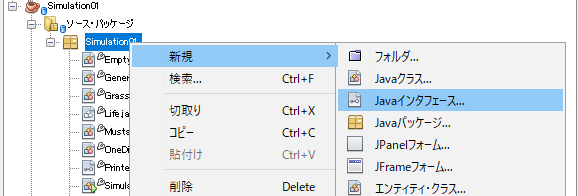
Figure:Right click menu for adding Interface in project pane - Complete in
New Javaインタフェースdialog and click終了(F).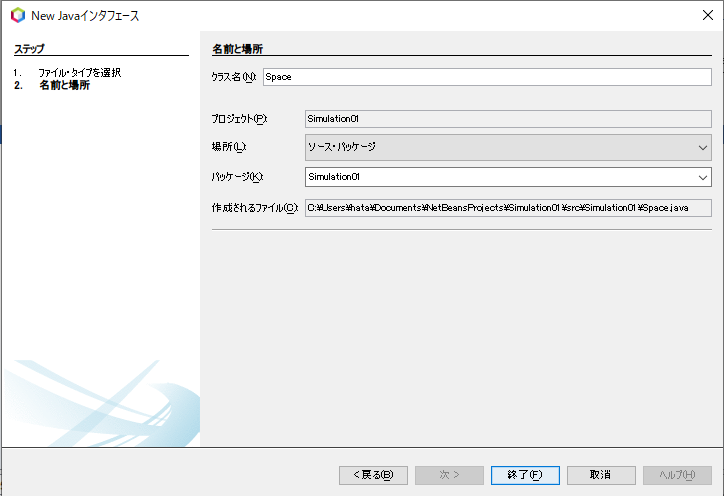
Figure:Specify Interface parameters in ``New Javaインタフェース'' dialog
- Right click on the target project.
- add class
GenerationPrinterby the same way. - modify the source code to run this program.
- take a screenshot of the execution result.
(5.5.1.節と5.5.2.節をよく読み、課題4の変更を加えたプロジェクトSimulation01に対して、mainメソッドを図50の定義に書き換え、図44の実行結果となるように図39から記載されているクラス・インタフェースを追加・変更して、プログラムを作成しなさい。ここでクラスの継承・実装関係はクラス図である図47に従いなさい。なお、図49に示すGenerationPrinterクラスは不完全のため、各自中略部分を改良すること。その後、GenerationPrinterのソースコードを報告しなさい。また実行結果もスクリーンショットで報告しなさい。なお、インタフェースの追加方法は以下の手順に則ること。
ここでは、インタフェースSpaceを追加する際の手順例を示す。
- プロジェクトペインから新たに追加するプロジェクトを選択して、右クリックする。
- 右クリックメニューの
新規 > Javaインタフェース...を選択する。 New Javaインタフェースダイアログで、クラス名をSpace、パッケージ名をSimulation01として、終了を選択する。- パッケージ
Simulation01にあるSpace.javaを開いてエディタペインに表示させ、図39のプログラムを適宜変更および追加する。
)